> ## Documentation Index
> Fetch the complete documentation index at: https://playerzero.ai/docs/llms.txt
> Use this file to discover all available pages before exploring further.
# Segment Setup Guide
> This guide walks you through connecting PlayerZero to Segment to capture user sessions and events without changing your frontend code.
## Prerequisites
* Access to Segment’s **Destination catalog**
* Your PlayerZero [API Key](https://playerzero.ai/current-org/settings/projects/current-project/api-tokens).
## Step-by-Step Instructions
### 1. Visit the PlayerZero Destination Page in Segment
}
href="https://app.segment.com/goto-my-workspace/destinations/catalog/actions-playerzero-web"
>
Open destination
Once on the page:
* Click **Configure PlayerZero Web**
* Select your **source** (your website’s data source)
* Name the destination, e.g. `PlayerZero Web`
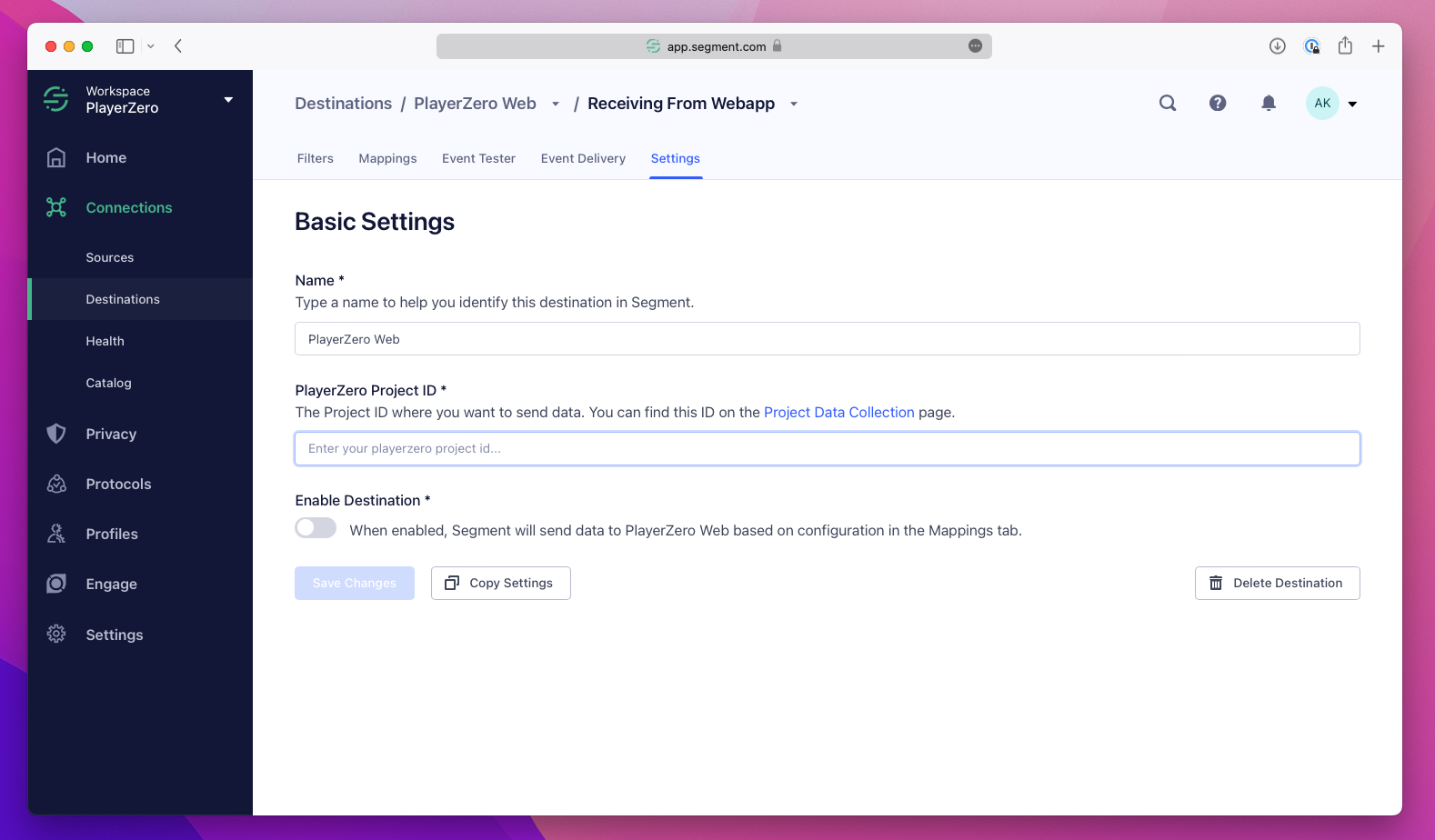
* You’ll end up on a configuration screen like this:
 ### 2. Add Your PlayerZero Project ID
* In PlayerZero, open your project settings and copy your **Project ID**
* Find the **Segment** section if it appears in your workspace
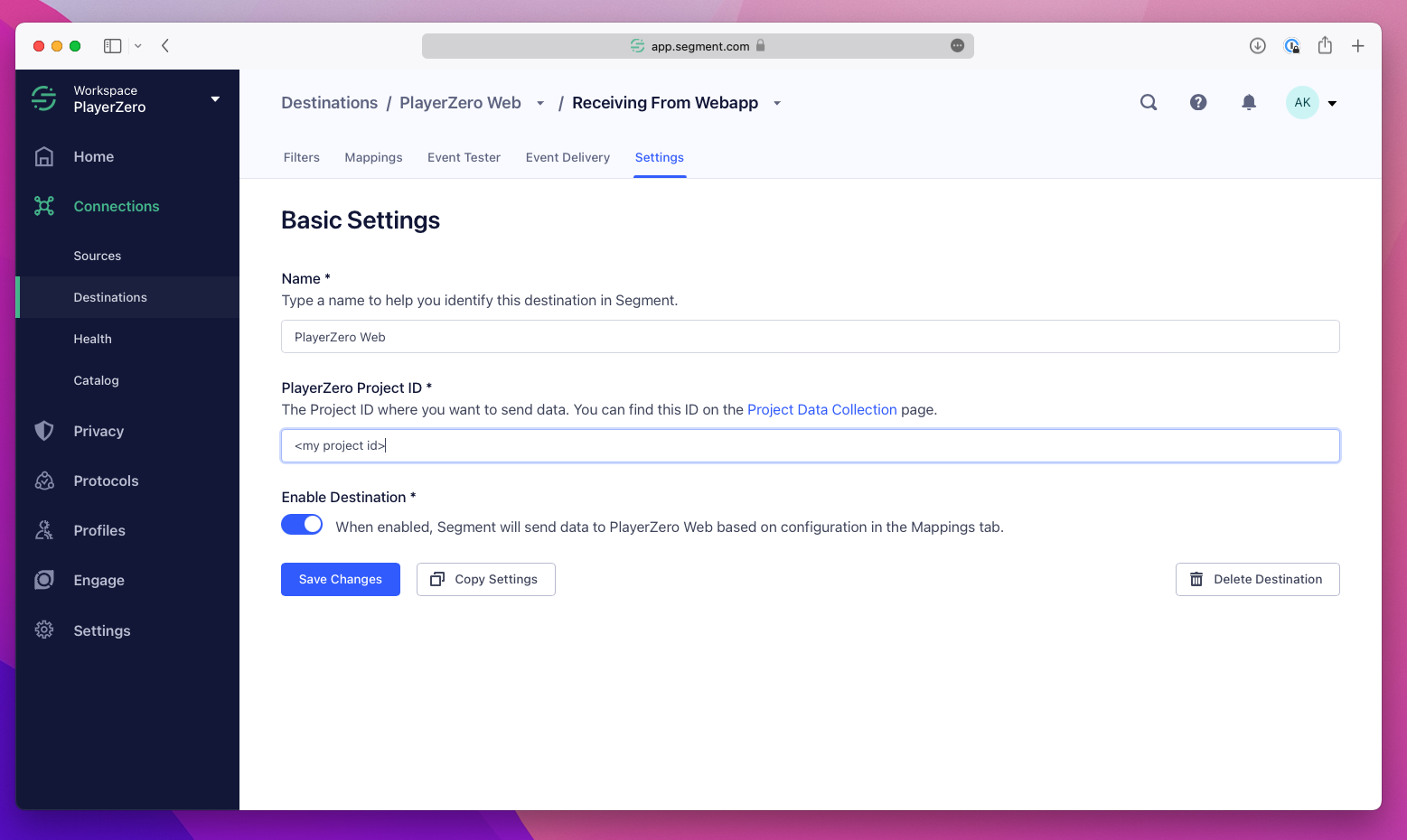
* In Segment, paste it into the `PlayerZero Project Id` field
### 3. Enable the Destination
Once configured:
* Click **Enable Destination**
* Then hit **Save Changes**
### 2. Add Your PlayerZero Project ID
* In PlayerZero, open your project settings and copy your **Project ID**
* Find the **Segment** section if it appears in your workspace
* In Segment, paste it into the `PlayerZero Project Id` field
### 3. Enable the Destination
Once configured:
* Click **Enable Destination**
* Then hit **Save Changes**
 That’s it! PlayerZero is now live via Segment.
## Configure Your Domains
You can further configure what PlayerZero collects by visiting the\
[Web Configuration](/docs/domain-controls) section of the dashboard.
Most teams use default settings, but advanced teams can fine-tune behavior here.
## What Happens Under the Hood
When you enable the PlayerZero Web destination in Segment, 3 things happen:
1. **Automatic SDK Injection**\
Segment injects the PlayerZero snippet into your frontend. It will automatically:
* Capture basic analytics (page views, button clicks)
* Monitor frontend JS and API errors
2. **Forwarded `track()` Calls**\
Any `analytics.track()` call you make via Segment is forwarded to PlayerZero — giving PlayerZero insight into business-level events.
3. **Forwarded `identify()` Calls**\
Users identified through Segment are also automatically identified in PlayerZero.
***
You're done! PlayerZero will now work behind the scenes without requiring any frontend changes.
That’s it! PlayerZero is now live via Segment.
## Configure Your Domains
You can further configure what PlayerZero collects by visiting the\
[Web Configuration](/docs/domain-controls) section of the dashboard.
Most teams use default settings, but advanced teams can fine-tune behavior here.
## What Happens Under the Hood
When you enable the PlayerZero Web destination in Segment, 3 things happen:
1. **Automatic SDK Injection**\
Segment injects the PlayerZero snippet into your frontend. It will automatically:
* Capture basic analytics (page views, button clicks)
* Monitor frontend JS and API errors
2. **Forwarded `track()` Calls**\
Any `analytics.track()` call you make via Segment is forwarded to PlayerZero — giving PlayerZero insight into business-level events.
3. **Forwarded `identify()` Calls**\
Users identified through Segment are also automatically identified in PlayerZero.
***
You're done! PlayerZero will now work behind the scenes without requiring any frontend changes.